A unit on Tenantify is the smallest thing you lease: one flat, one shop, one self-contained room. Each unit has its own rent, deposit, service charge, and lease. Set them up carefully now so tenant onboarding runs smoothly later.
First time on Tenantify? You can do this step inside the first-time setup wizard instead of from the dashboard. This guide is the standalone reference for adding more units later, once your estate already exists.
Who this is for
Landlords who have created an estate and now need to add the units inside it.
What you’ll get done
One or more units added to your estate, each marked AVAILABLE and ready to receive a tenant.
Before you start
- Your estate exists. If not, see Creating Your First Estate.
- A monthly rent amount decided for each unit. Enter in naira (₦1,500,000 is ₦1,500,000; no shortcuts).
- A decision on whether the unit has a security deposit and a service charge.
Steps
1. Open the estate detail page
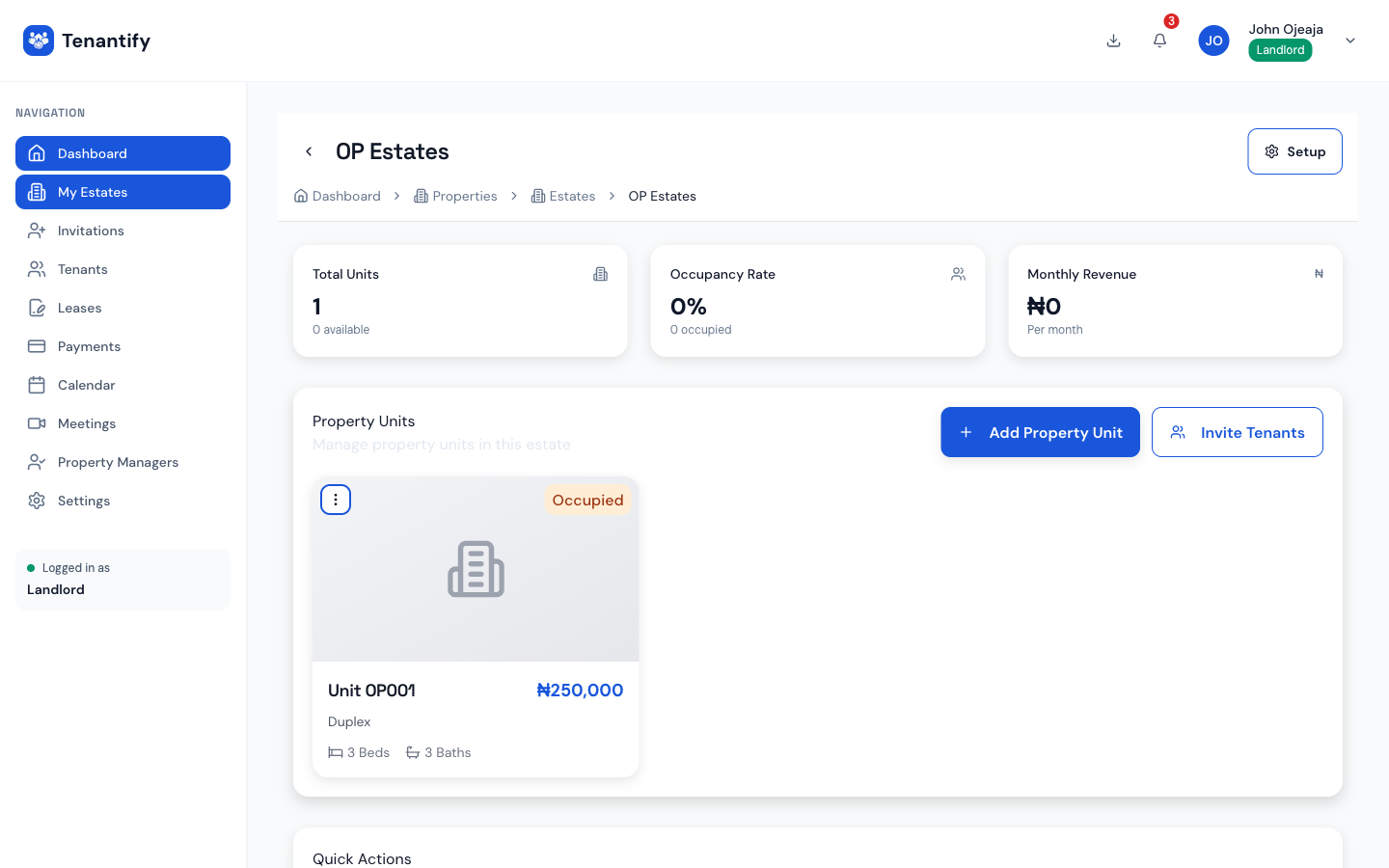
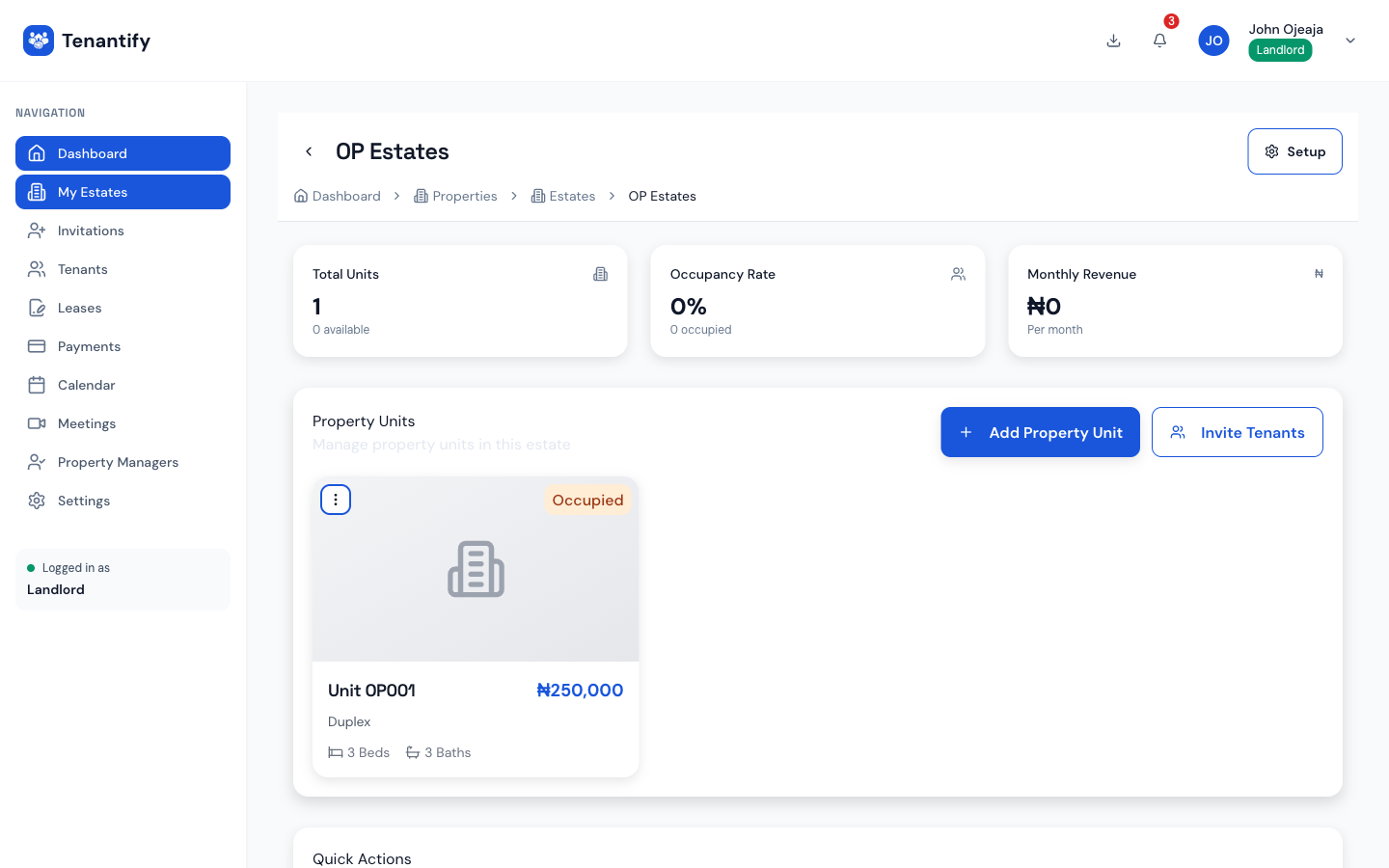
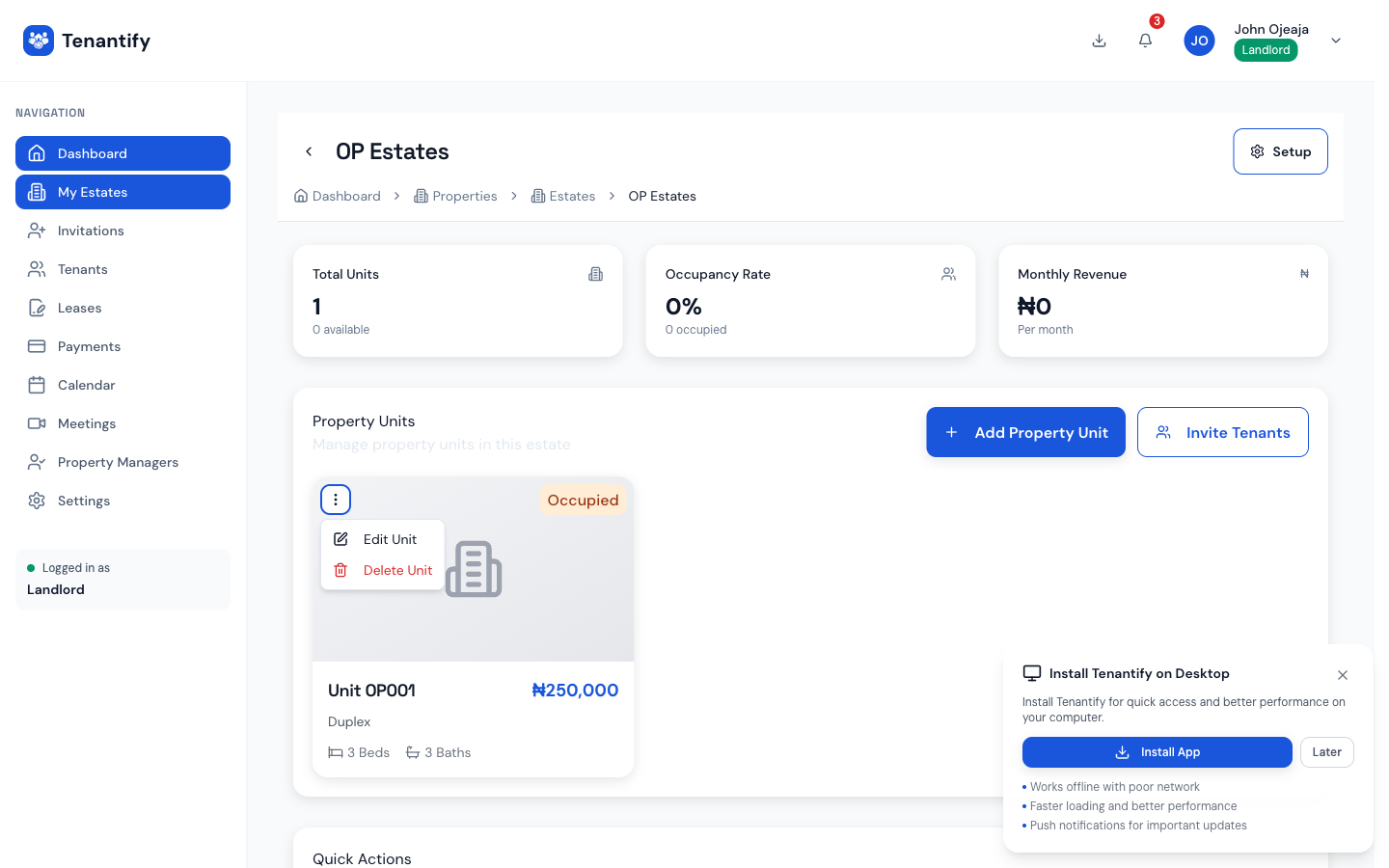
From Estates, click the estate you created. At the top you see summary cards for total units, occupancy, and monthly rent potential. Below that sits a Property Units section with an Add unit button.
2. Click Add unit
A drawer slides in from the right. Tenantify uses a right-side drawer so you can still see the estate context while filling the form.
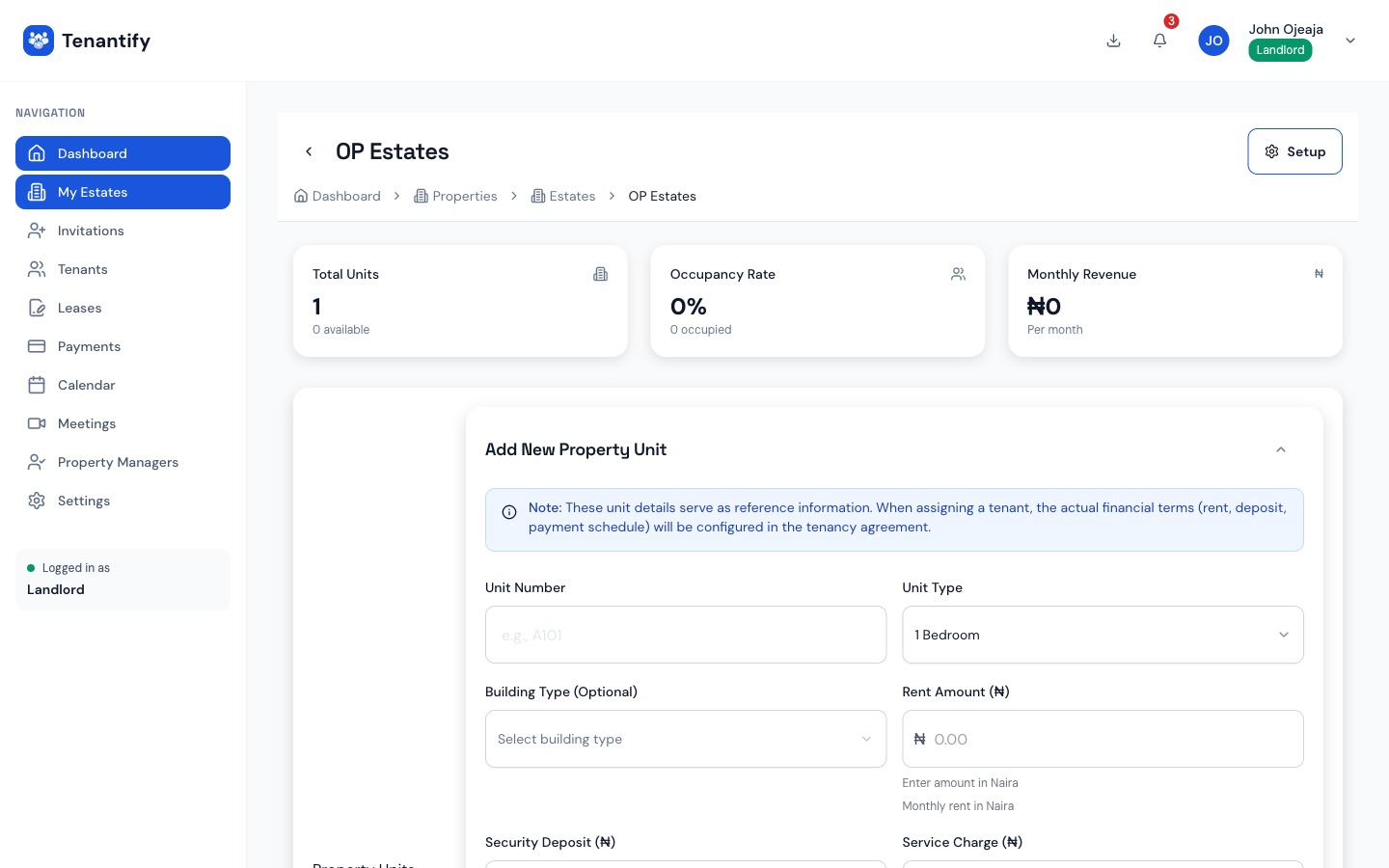
3. Identify the unit
Give the unit a label only you and the tenant need to understand. Examples: “Flat 2B”, “Shop 4”, “Ground Floor Left”. The label must be unique within the estate.
Pick a floor number if the building has multiple storeys. Pick a property type from the drop-down: studio, one-bedroom, two-bedroom, three-bedroom, four-bedroom, or shop.
4. Enter the physical details
Fill the fields that describe what the unit actually is:
- Bedrooms and bathrooms. Whole numbers.
- Square metres. Leave blank if you’re unsure.
- Features. Tick what applies: en-suite, balcony, fitted kitchen, air conditioning, prepaid meter. These appear in the lease and help justify the asking rent.
5. Set the rent and deposit
Enter each amount in naira. For a ₦1.5M annual rent paid monthly at ₦125,000 per month, type 125000 in the Monthly rent field.
- Monthly rent. What the tenant pays each month.
- Security deposit. Usually one month’s rent in Lagos; two months in some older estates.
- Service charge. Optional monthly amount tenants pay on top of rent for shared utilities.
6. Add a description
A brief description helps prospective tenants understand what they are renting. Fifty words is enough. Mention anything non-obvious: restricted parking, a separate entrance, the position relative to the generator house. Skip the filler.
7. Save the unit
Click Create unit. A toast confirms the save and the unit appears in the list below with status AVAILABLE. The estate’s total unit count updates on its own.
8. Repeat for each unit
For adding units after initial setup, you create each unit individually. For a twelve-unit block, you create twelve records. Most landlords settle into a rhythm of three minutes per unit once they’ve done the first one.
Tip. During the initial onboarding flow, a bulk upload option is available that lets you add many units at once via CSV. After onboarding, units are added one at a time from the estate detail page.
If something goes wrong
Rent refuses to save. The form rejects zero and negative amounts. If you’re renting to family at no cost, enter ₦1 and note the arrangement separately in your records.
Unit number rejected as duplicate. Unit numbers must be unique per estate. Adding an “A” or “B” suffix resolves most clashes.
Square metre field is greyed out. Not all browsers render the input cleanly. Refresh the page and try again, or leave the field blank if you don’t have the number handy.
Estate still says DRAFT after I added units. That’s expected. Your estate switches to active when you invite your first tenant, not when you create units.
What’s next
With units ready, move on to Inviting Tenants. Prospective tenants receive an email, self-register, and sign the lease from their own device.