Rent collection on Tenantify runs through Paystack. Your tenants pay with card, bank transfer, or USSD, and the money lands in your own Nigerian bank account the next business day. No chasing, no screenshots of transfers, no envelope counting.
Who this is for
Landlords with at least one active tenant, or landlords who want payment ready before their first tenant accepts. Both paths converge at the same setup flow.
What you’ll get done
A Paystack subaccount linked to your Tenantify profile, a signed authorisation letter uploaded, and confirmation that your bank is ready to receive settlements.
Before you start
- Your personal or registered business bank account details: bank name and the ten-digit NUBAN.
- Your BVN for a personal account, or your CAC number for a business account.
- A printer, a pen, and a scanner or phone camera. One step involves signing a letter.
- Ten to fifteen minutes. The Nigerian KYC flow is thorough.
Steps
1. Open Payment Setup
In the dashboard sidebar, click Settings, then Payment Setup. First-time visitors see a checklist that tracks what Paystack needs from you.
Screenshot coming soon
Step 1: Payment Setup checklist
2. Enter your bank details
Click Add bank account. Pick your bank from the drop-down: GTBank, Access, Zenith, First Bank, UBA, and so on. Enter the ten-digit NUBAN.
As you type, Tenantify queries Paystack and displays the account holder name. Check it matches your own name (or your registered business name). A wrong digit will resolve to someone else’s account, and Paystack cannot recover funds sent to the wrong NUBAN.
Screenshot coming soon
Step 2: Bank selector and NUBAN validation
3. Generate the authorisation letter
Nigerian banks require written authorisation before they accept third-party settlements. Tenantify produces a pre-filled PDF with your name, bank, account number, and Tenantify registration details.
Click Generate authorisation letter and download the PDF. Print it, sign it, and if you’re using a business account, stamp it with your company seal.
4. Upload the signed letter
Scan or photograph the signed letter and drop it into the uploader. Our compliance team reviews it on our end within one business day for personal accounts, and up to three for business accounts with CAC verification.
Screenshot coming soon
Step 4: Authorisation letter upload zone
5. Wait for verification
Your account sits in PENDING_VERIFICATION while compliance reviews the letter. During this window you can keep adding units, inviting tenants, and setting up fees. Any payments your tenants make simply queue and settle once your subaccount is approved.
A green banner appears on your dashboard the moment verification clears. You also receive an email.
6. Receive your first rent
Once active, tenants pay through the Tenantify app. Each payment flows like this:
- The tenant pays the full rent plus a 3% platform fee (capped at ₦50,000 per period) through Paystack. The 3% covers both Tenantify and Paystack’s gateway fee. You do not pay it.
- Paystack splits the payment: the full rent amount you set goes to your subaccount, the platform fee stays with Tenantify.
- Your rent settles to your bank account, usually within one business day.
The short version: you set the rent, the tenant pays the rent plus the platform fee, and you receive the rent in full. The fee is visible to the tenant on every receipt as a line item labelled “Platform Fee (3%)”.
Worked example on a ₦5,000,000 annual upfront payment. The tenant pays ₦5,050,000 in one transaction. You receive ₦5,000,000 in your bank account. Tenantify keeps ₦50,000 (the cap binds — uncapped 3% would have been ₦150,000). The same cap binds per period for any rent ≥ ₦1,666,667 paid annually upfront. Monthly and quarterly billing rarely hit the cap because per-period amounts are smaller.
7. Reconcile monthly
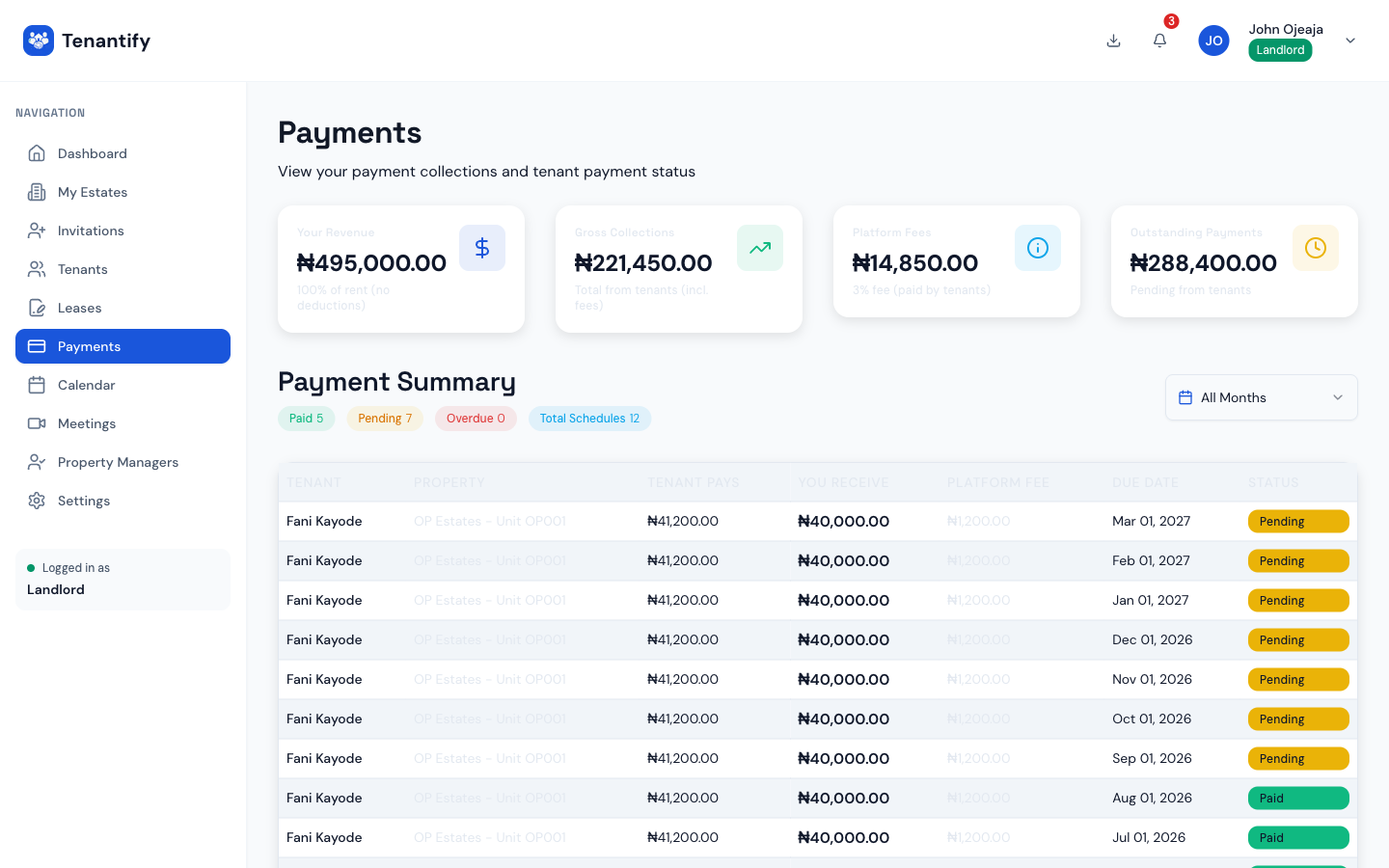
The Payments dashboard shows every transaction filtered by estate, unit, or tenant. Export to CSV at month-end for your accountant. Tenantify keeps a full record of every payment: tenant, unit, amount, date, status, and the Paystack reference your accountant may ask for.
The 3% is fee-on-top, paid by the tenant. Your payout equals the rent you configured. The tenant pays 103% of the rent (plus 3% on service charges, deposits, and any agency fee), capped at ₦50,000 per period. Every receipt line-items the fee so nothing is hidden from either side.
If something goes wrong
Authorisation letter rejected. The most common reasons are a missing bank stamp on business accounts, or a signature that doesn’t match your bank records. Re-sign, re-stamp, and re-upload. Compliance reviews retries the same day.
NUBAN says “account not found.” You selected the wrong bank. Some Nigerian banks share NUBAN prefixes, so double-check the bank name and retry.
Settlement not arriving. Paystack settles to your bank on T+1 for most payment methods. If day three passes without the money landing, open the payment’s detail page and copy the Paystack reference. Send it to support and we trace it within the hour.
Tenant paid but nothing shows on my dashboard. Refresh. If nothing appears after thirty minutes, open the payment detail page and click the manual Verify with Paystack button. Tenantify checks with Paystack and updates the status.
What’s next
With payments flowing, you can optionally hand day-to-day operations to someone else. Read Inviting a Property Manager to delegate inspections, tenant communications, and fee management.