Your lease appears on Tenantify once your landlord configures the tenancy agreement. Until they do, the Leases area stays empty even if you have accepted their invitation. When you see the lease, read it closely. A signed tenancy agreement is the document every landlord-tenant dispute in Nigeria eventually turns back to.
Who this is for
Tenants whose landlord has configured the tenancy agreement after acceptance, and who now need to read and sign the lease. Also tenants who want to re-read their terms or download a signed PDF for their records.
What you’ll get done
Your lease opened in full, every section read, the agreement signed digitally, and a signed PDF downloaded to your phone or laptop for safekeeping.
Before you start
- Your landlord must have configured the tenancy agreement. If the Leases area on your dashboard is empty, they have not. Nudge them and point them to their Configuring the Tenancy Agreement guide.
- Fifteen minutes of unbroken time. Do not sign a lease between meetings.
- A translator or trusted friend if English is not your first language. Nigerian courts bind signed contracts even when the signer did not fully grasp the English; the risk is on you.
Steps
1. Open the Leases area from your dashboard
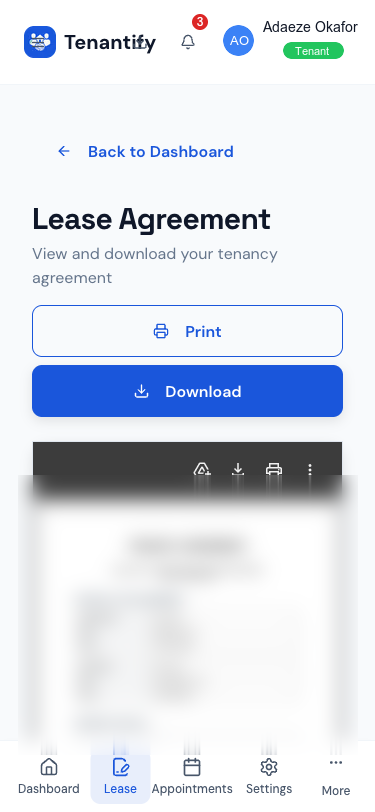
From your tenant dashboard, find the View Lease quick action button. Click it to open your tenancy agreement. Your lease status will show PENDING until it is signed, then ACTIVE.
2. Click View lease
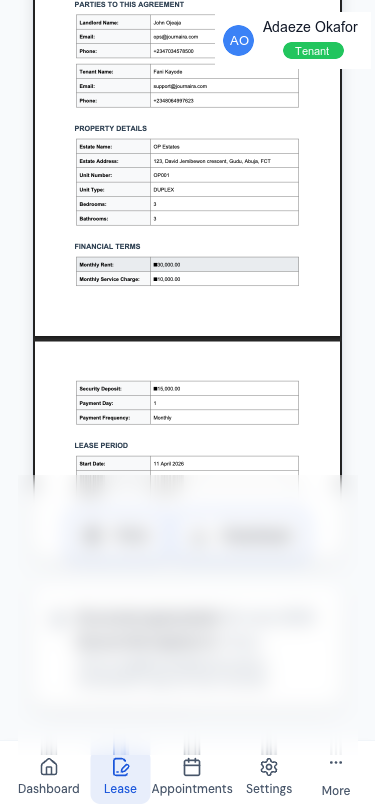
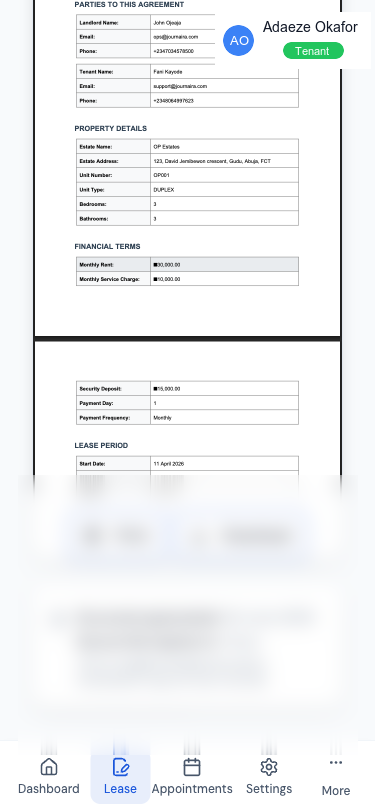
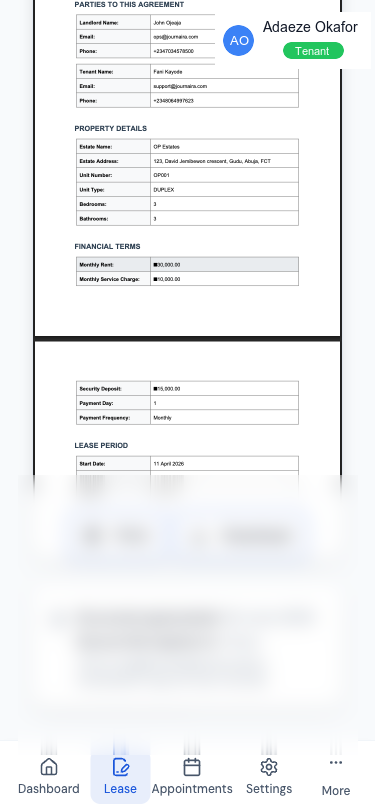
The lease detail page opens with the full agreement broken into labelled sections:
- Parties. Your name, your landlord’s name, the estate, and the unit.
- Term. Lease start date, end date, and total duration in months.
- Rent. Monthly rent amount, payment frequency (monthly / quarterly / annually), payment day of the period.
- Deposits and fees. Security deposit, agency fee if any, caution fee if any.
- Service charges. Monthly amount and what it covers (generator, security, water, cleaning).
- Obligations. Maintenance responsibility, noise rules, permitted alterations.
- Nigerian legal clauses. Lagos State Tenancy Law 2011 references, dispute resolution procedure, NDPR data handling.
3. Read every section
Take your time. The sections that cause the most disputes later:
- Notice period. How many months’ warning either side must give before ending the lease early.
- Rent review. Whether the rent can change during the term, and how much notice you get.
- Security deposit refund. Under what conditions it returns, and within what timeframe.
- Maintenance responsibility. Who pays for a burst pipe, a failing generator, a replaced fridge.
4. Ask before you sign
If anything is unclear, contact your landlord or property manager directly to raise your concerns before signing. Resist the pressure to sign while confused. A signed lease is hard to reopen except by mutual agreement.
5. Sign digitally
Your landlord sends a signing link via email when the lease is ready for your signature. Click the link in the email to open the dedicated signing page. The signing panel asks you to:
- Type your full name, exactly as it appears on your Tenantify profile.
- Tick the box acknowledging that this is a binding electronic signature under the Nigerian electronic transactions framework.
- Click Confirm signature.
6. Lease becomes ACTIVE
The moment you click confirm:
- The lease status flips from PENDING to ACTIVE.
- A timestamped, auditable signature record is stored against the lease.
- Your landlord gets a notification.
- A signed PDF copy generates for download, with a verification code anyone can scan.
7. Download your signed PDF
Click Download signed PDF at the top of the lease page. Save the file somewhere you can find again: email it to yourself, store it in cloud storage, or print a hard copy. Keep it at least as long as the lease runs, plus six months after the end date.
Watching your lease status
Your lease progresses through status changes as the year unfolds:
- PENDING. Freshly configured, awaiting your signature.
- ACTIVE. Day-to-day. You pay rent and use the property.
- EXPIRING_SOON. Thirty days before the end date. You and your landlord get notifications; this is the window for renewal conversation.
- EXPIRED. Past the end date, with a seven-day grace period for tidy-up.
- RENEWED. Your landlord has issued a new lease and you have signed it.
- TERMINATED. Either side ended the lease early, with the reason recorded.
If something goes wrong
The Leases area is empty. Your landlord has not configured the tenancy agreement yet. Ask them directly; the step takes ten minutes on their end.
Sign button is disabled. Your typed name does not match the name on your profile. Update your profile under Settings, then refresh and try again.
PDF download does not start. Your browser may be blocking pop-ups. Right-click the link and save target, or try a different browser.
You found a mistake in the lease. Do not sign. Message your landlord. They can amend the agreement while it is still in PENDING status. Once you sign, any change requires a formal variation agreement that both sides have to approve.
What’s next
Keep your records clean from day one. Downloading Your Payment Receipts shows how to access every receipt and bulk-export a year for your accountant.