Your landlord has invited you to Tenantify. This guide gets you from the invitation email to your dashboard in five minutes, with no callbacks to the landlord for help.
Who this is for
New tenants whose landlord, estate manager, or property manager sent them an invitation email. You have seven days from the moment the email was sent to accept it.
What you’ll get done
A Tenantify tenant account, full access to your dashboard, and a clear view of what you owe (first-month rent, deposit, any agency fee) and when it’s due.
Before you start
- The invitation email from Tenantify. Check spam and promotions if you can’t find it.
- A Nigerian phone number. Tenantify accepts
+2348012345678,2348012345678, or08012345678. - A password that clears the bar: at least eight characters, with one uppercase letter, one lowercase, one number, and one special character.
Steps
1. Open the invitation email
Look for an email from Tenantify in your inbox. It confirms your estate, unit, and includes any personal note from your landlord. Check spam and promotions if you cannot find it.
Screenshot coming soon
Step 1: Invitation email open in inbox
2. Click Accept invitation
The button opens Tenantify in your browser. A preview of the invitation appears first, showing the landlord name, estate, and lease summary. Check them.
If the page says the invitation has expired, reply to the email and ask your landlord to resend. A fresh link takes about thirty seconds on their end.
Screenshot coming soon
Step 2: Invitation acceptance page with landlord details
3. Fill your details
The acceptance form asks for four things:
- Full name. Goes on your lease, your receipts, and any legal correspondence.
- Password. Eight or more characters with the rules above. Avoid reusing your banking password.
- Confirm password. Re-type to catch typos.
- Phone. Nigerian format. The form rejects UK, US, and unrelated numbers.
Screenshot coming soon
Step 3: Tenant registration form
4. Submit and land on your dashboard
Click Accept and create account. Tenantify creates your user record, logs you in, and routes you straight to your dashboard.
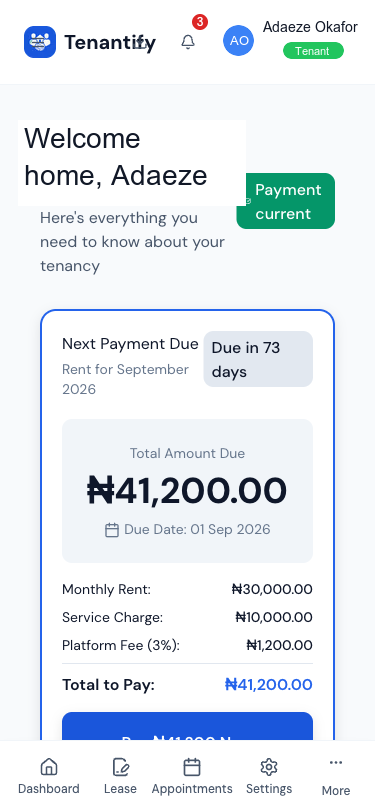
Your dashboard shows your estate and unit. You will not see a rent amount or a payment schedule yet, and that is normal. Your landlord has one more step on their side: configuring the tenancy agreement (lease dates, rent, deposit, service charge, payment frequency).
Once they submit it, your payment schedule appears the next time you refresh your dashboard. Your first payment usually bundles the first period’s rent, the security deposit, and any service charge into a single invoice at move-in. The Viewing and Signing Your Lease guide takes over from there.
If something goes wrong
“Phone format invalid.” You entered a non-Nigerian number, or there are spaces or hyphens in the field. Try 08012345678 with no spaces.
“This invitation has expired.” You opened the email after the seven-day window. Reply to your landlord and ask them to resend. Expired links cannot be reinstated.
Password rejected. Make sure you have eight or more characters, one uppercase letter, one lowercase letter, one digit, and one of !@#$%^&*. Dictionary words on their own fail.
“Email already in use.” You may have rented on Tenantify previously. Sign in with your existing password on the login page. If you’ve forgotten it, click Forgot password? to reset.
What’s next
Two things matter in your first day: signing your lease and settling first-month rent. Start with Paying Your First Rent, then move on to Viewing and Signing Your Lease.