
This is the single most important step in the landlord track. Your invitation only tells the tenant they have a place. The tenancy agreement is where you and the tenant formalise the lease: how long it runs, how much rent costs, when it falls due, and what happens if the tenant is late. Filling this modal correctly drives every payment, every receipt, every renewal, and every dispute you will ever deal with on that unit.
Who this is for
Landlords whose tenant has accepted an invitation. Until the tenant accepts, the row on your Tenants page sits in INVITED status and the Configure Agreement action is dimmed. Once they accept, the row flips to AWAITING AGREEMENT and the button becomes available.
What you’ll get done
A signed-off tenancy agreement covering lease dates, rent, deposit, service charge, payment frequency, payment day, late-fee rule, and grace period. On save, Tenantify creates the agreement and generates a full payment schedule the tenant sees on their dashboard the next time they log in.
Before you start
Have clear answers to these six questions. If you are unsure about any, pause and agree with the tenant before opening the modal. You can edit the agreement only until the tenant signs it.
- When does the lease start and end? Exact dates.
- How often will rent be paid? Monthly, quarterly, or annually.
- How much is rent per period? In Naira, matching the frequency you chose.
- How much is the security deposit? Usually one or two months’ rent equivalent.
- Is there a monthly service charge? If so, how much.
- What happens if the tenant pays late? A percentage of rent, or a fixed Naira amount? After how many days of grace?
Steps
1. Open the Tenants page
Click Tenants in the sidebar. Find the tenant who just accepted your invitation. Their status chip reads AWAITING AGREEMENT (or similar). Click the Configure Agreement button on their row, or open the row menu and select Configure Tenancy Agreement.
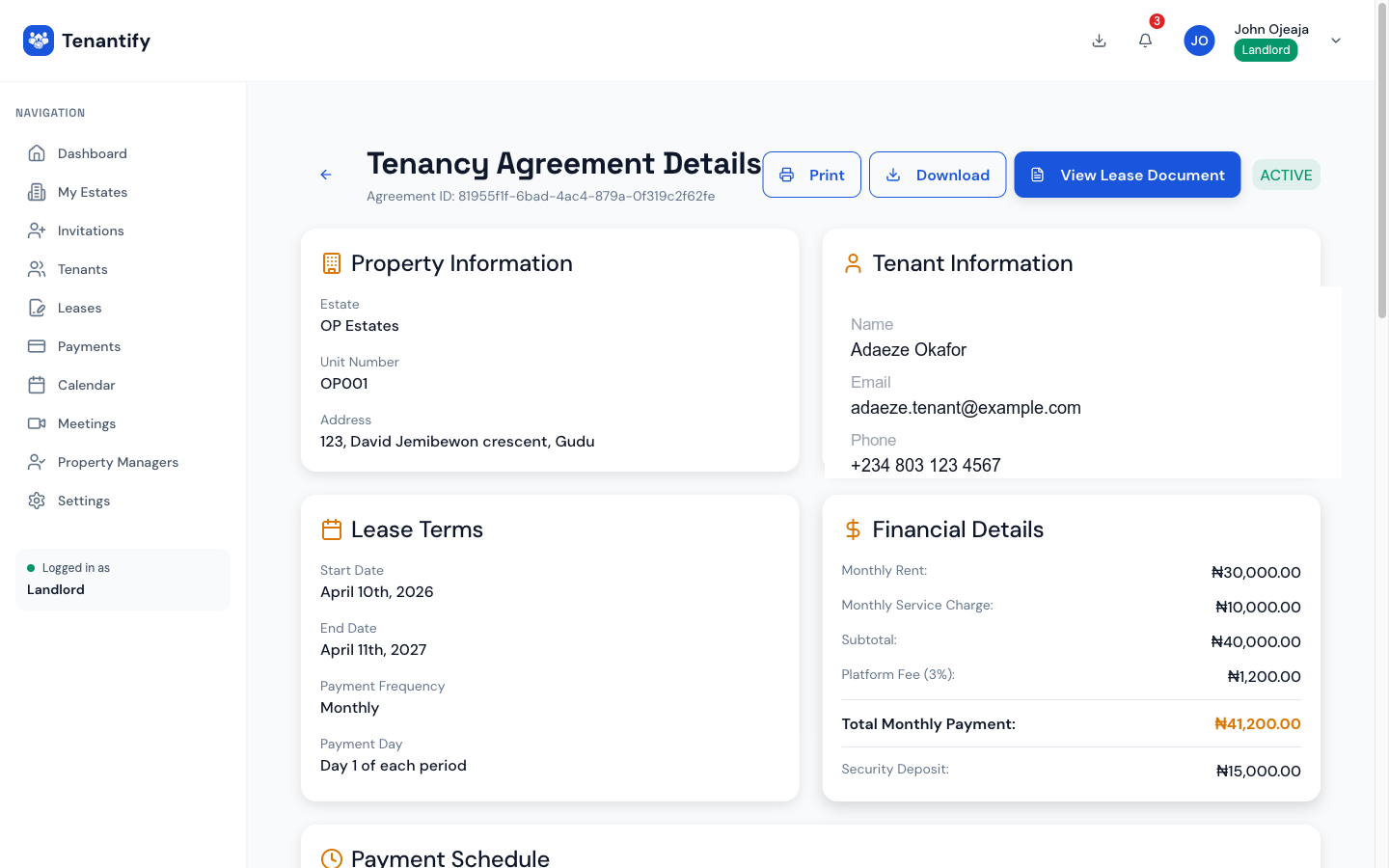
2. Section 1 of 4: Lease Period
The modal opens on the Lease Period tab. You pick two dates:
- Lease Start Date. The first day the tenant may occupy the unit. This is also the anchor for the payment schedule.
- Lease End Date. The last day of the tenancy, which must be after the start date. Both dates use full year, month, and day pickers, and both can go up to ten years into the future.
As soon as both dates are selected, Tenantify shows the lease duration in months (for example, "Lease Duration: 12 months"). Twelve months is the Nigerian standard; two-year leases are common on newer Lekki and Ikoyi stock.
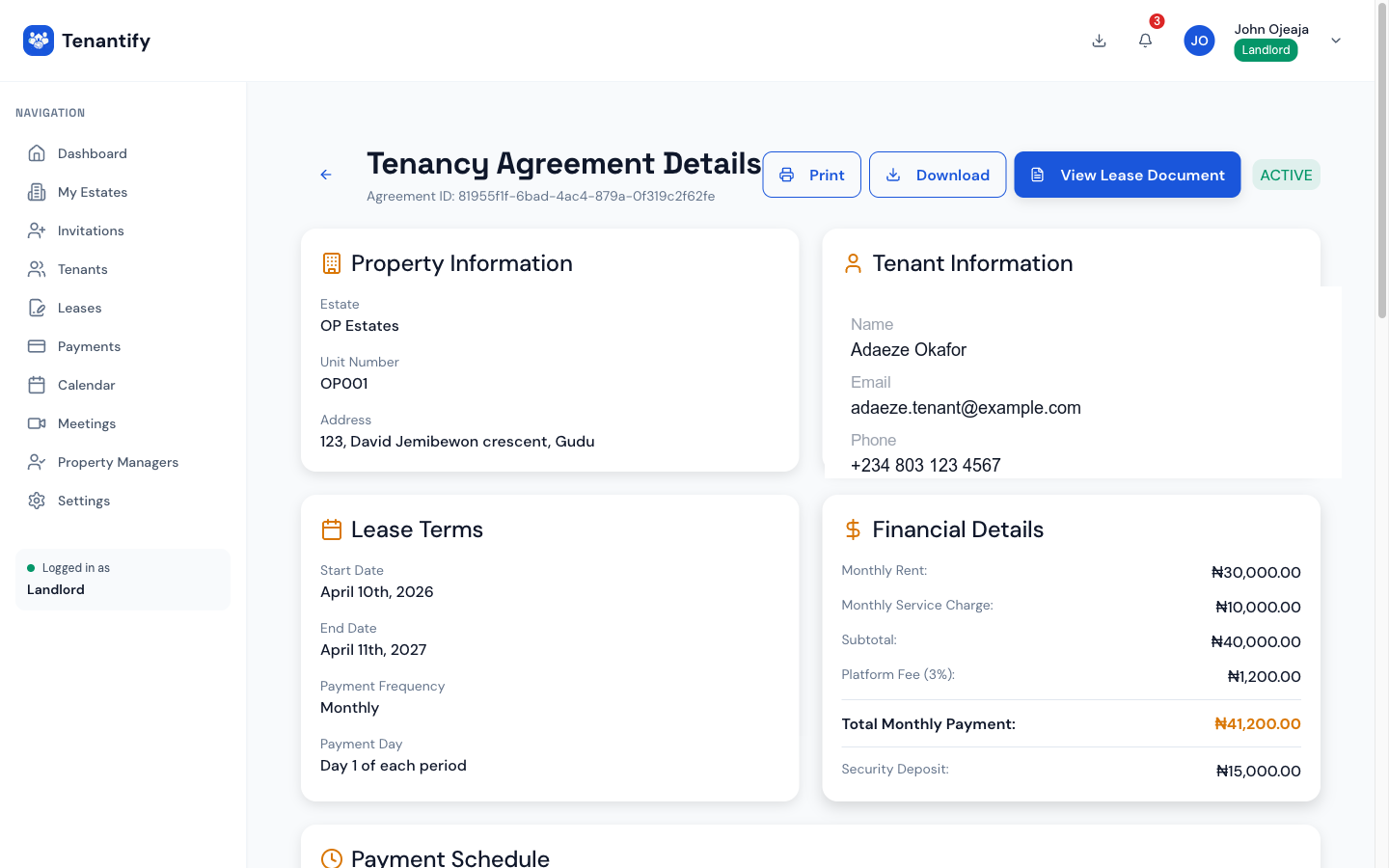
Click Next to move to Payment Terms.
3. Section 2 of 4: Payment Terms
This is the section that decides how your tenant’s payment schedule will look. Five fields, and each one shapes the tenant’s cash flow directly.
Payment Frequency
Three options, each with its own trade-offs:
| Frequency | Implication for tenant | Implication for you |
|---|---|---|
| Monthly | Smaller, more frequent payments. Most accessible. | Twelve payments a year, each small. More reminders, more reconciliation. |
| Quarterly | One payment every three months. Common for mid-tier rentals. | Four payments a year. |
| Annually | One payment a year, traditional Nigerian format. | One large payment, once. Simplest to track. Tenant commits to a year of cash upfront. |
Pick the frequency you have agreed with the tenant. The rest of the form relabels itself to match: if you pick Annually, the Rent field becomes "Annual Rent (NGN)" and the placeholder changes from ₦600,000 to ₦7,200,000.
Payment Due Day
The day of the month the payment falls due, from 1 to 28. Avoid 29, 30, and 31. February breaks them, and the tenant ends up confused. If the tenant moves in on the 5th, the 5th is often the cleanest pick.
Late Fee Type
Two ways to penalise a late payment:
- Percentage. A share of the unpaid rent. Five per cent is common in Lagos.
- Fixed Amount. A flat Naira figure regardless of rent size. Common on smaller units.
Late Fee Value
The number. If you chose percentage, enter 5 for five per cent. If you chose fixed, enter the Naira amount such as 10000 for ₦10,000.
Grace Period (Days)
How many days after the due date before the late fee applies. Five is the default and a fair starting point. Nigerian banks sometimes delay tenant transfers; a five-day cushion prevents arguments.
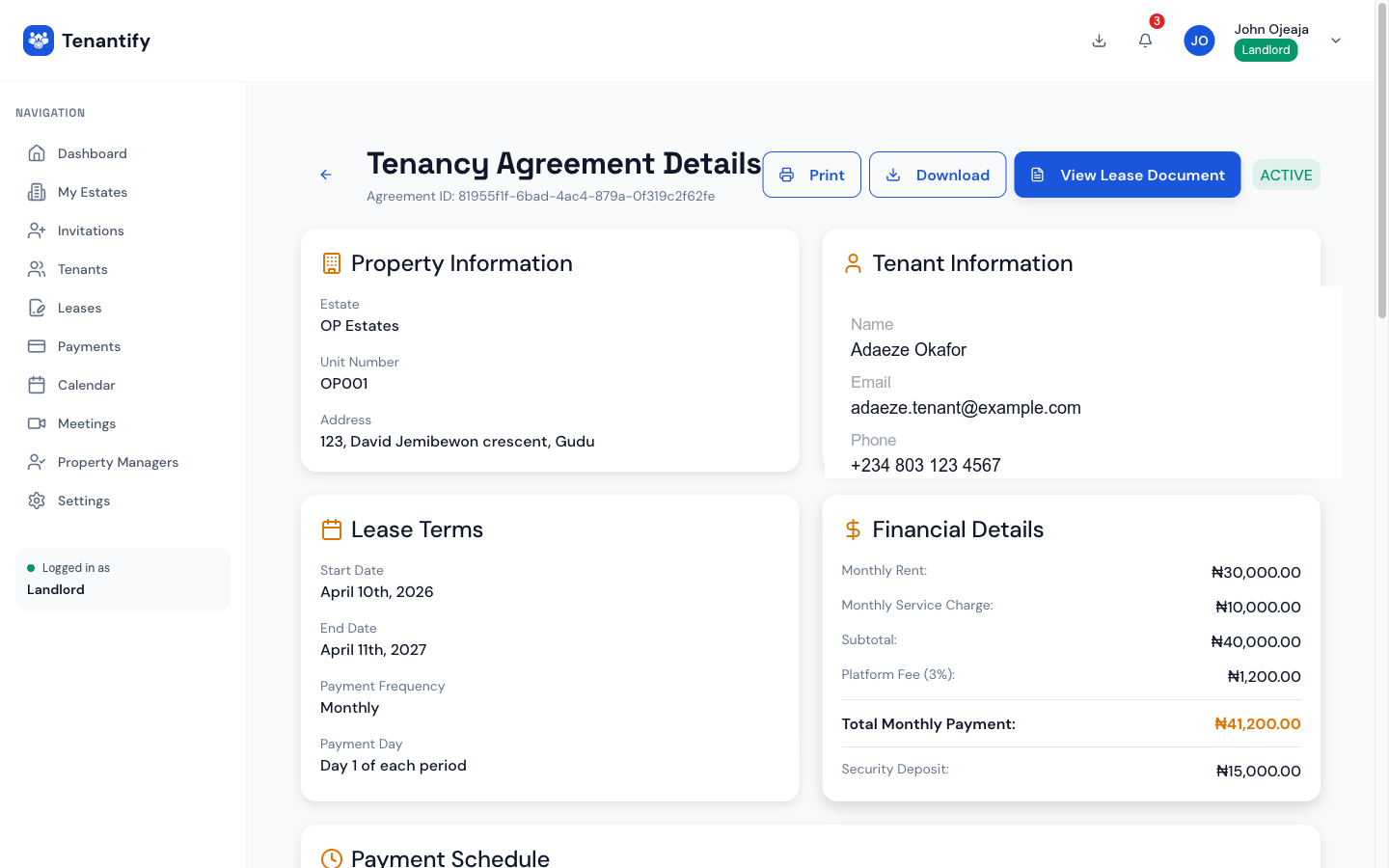
At the bottom of this section, Tenantify shows a live Payment Schedule Preview: first payment date, frequency, due day, and amount per period. Read it carefully. This is what the tenant will see.
Click Next to move to Financial Details.
4. Section 3 of 4: Financial Details
The three Naira fields that define the money side of the lease.
Rent Amount
Enter the rent for the period you chose in the previous section. If you picked Monthly, enter the monthly amount (for example 600000 for ₦600,000). If you picked Annually, enter the annual amount (for example 7200000 for ₦7,200,000).
Below the field, Tenantify shows the monthly equivalent in small print for any non-monthly frequency, so you can cross-check you didn’t slip a zero.
Security Deposit
A flat Naira amount, paid once at move-in. The placeholder nudges toward two months of the monthly-rent equivalent, but one month is common on standard Lagos stock. This figure is refundable at the end of the lease, minus any damage costs.
Service Charge
Optional. Your monthly shared-services fee for security, generator, water, or cleaning. If the estate runs a communal generator and charges ₦20,000 a month, enter 20000. Leave blank or enter 0 if the tenant pays utilities directly.
The fee panel (important)
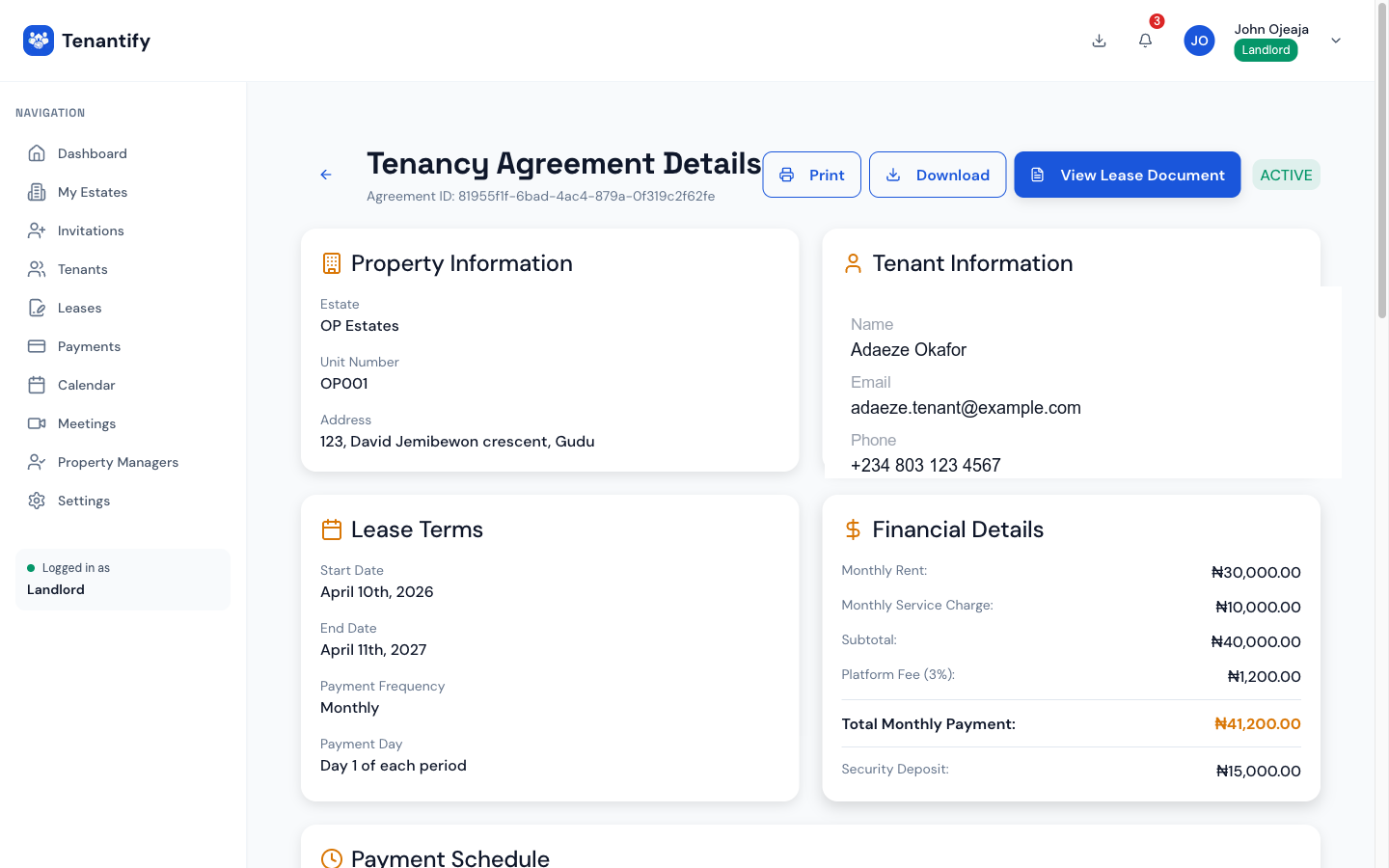
As soon as you enter rent and service charge, Tenantify displays a green panel summarising the money flow:
- Landlord receives per [period]. The full rent + service charge. This is what lands in your bank each cycle.
- Platform fee (3%). Tenantify’s fee, added on top.
- Total tenant pays per [period]. The sum of the two above.
The key line: “The landlord receives 100% of the set amount. Platform fee is added on top for the tenant.” You do not lose 3% of your rent. Your tenant pays 103% and the extra 3% covers our platform and Paystack’s gateway fee.
First Payment Bundle
Because a move-in payment normally combines first rent + security deposit, Tenantify rolls them into a single first-payment invoice. A blue Alert box shows:
- First [month/quarter/year] rent
- Security deposit
- Platform fee (3% of the combined base)
- Total first payment
Your tenant receives one invoice at move-in covering everything. Neater for them, fewer failed transactions for you.
Click Next to move to Review.
5. Section 4 of 4: Review & Confirm
A summary page repeats everything you entered:
- Tenant name, property, unit
- Lease duration in months
- Start and end dates
- Rent amount and frequency
- Security deposit
- Service charge
- Payment day
- Late fee rule
- Grace period
Read every line. Mistakes here take time to undo because the payment schedule generates automatically on submit.
Tick the confirmation box acknowledging that the terms are correct and binding, then click Create Agreement (or Update Agreement if you are editing a placeholder).
6. What happens on submit
A single click triggers a chain:
- Tenantify creates the tenancy agreement.
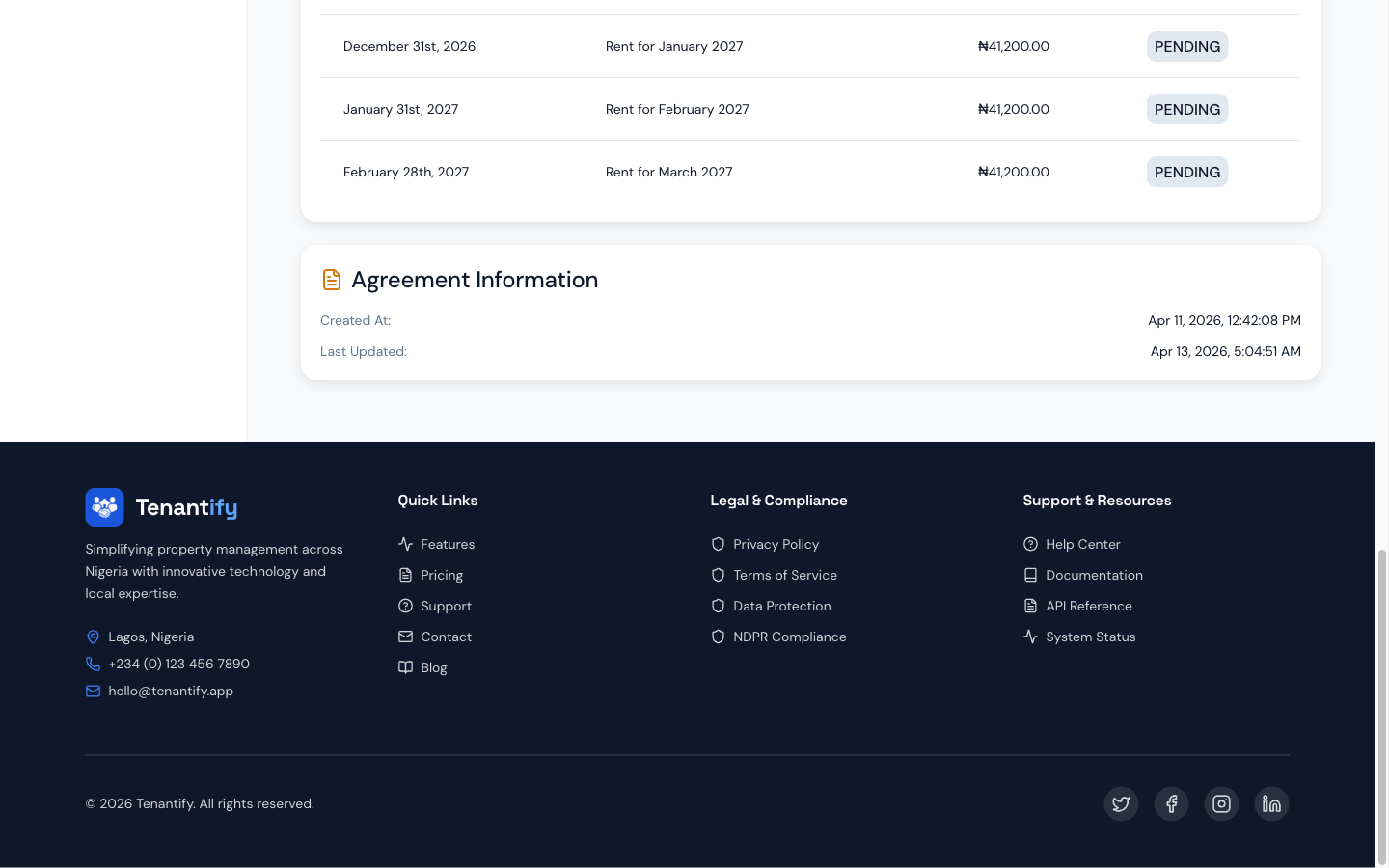
- A payment schedule generates automatically, one row per period: first-payment bundle, then recurring rent and service charge rows for each period of the lease.
- The tenant’s status on your Tenants page moves to ACTIVE.
- The unit status flips to OCCUPIED if it wasn’t already.
- Both you and the tenant can now view the lease from the Leases area in your respective dashboards. Tenants see the full document from their dashboard home; you see it on the Leases list.
- The tenant’s dashboard now shows the generated schedule with due dates and amounts, ready for their first payment.
Implications to understand before you submit
- Rent amount is period-based, schedule is monthly-equivalent. If you picked Quarterly and entered ₦1,800,000, Tenantify stores the monthly equivalent (₦600,000) for consistency but collects the full ₦1,800,000 every three months.
- You receive the set amount in full. The 3% platform fee is charged to the tenant on top. Your bank account receives the amount on every schedule line.
- First payment is bundled. The tenant pays rent + deposit + fee in one transaction at move-in.
- The late fee kicks in after the grace period, not on the due date. A five-day grace means day six is when the late fee applies, not day one.
- Changes before tenant signs: free. Edit the agreement from the Leases detail page while status is PENDING.
- Changes after tenant signs: formal. You need a variation agreement recorded on the lease history.
If something goes wrong
Configure Agreement button is dimmed. Your tenant has not yet accepted the invitation. Check their status on the Tenants page; it should read ACCEPTED or AWAITING AGREEMENT.
End date won’t save. It must be after the start date. Check both pickers.
Rent rejected as invalid format. The field accepts numbers and up to two decimal places. Remove any commas, Naira symbols, or spaces.
Late fee percentage treated as a Naira amount. You probably toggled Fixed instead of Percentage in the late-fee type. Switch and re-enter.
Submit succeeded but the tenant says they see no schedule. The schedule generates on submit. If the tenant checks within thirty seconds and sees nothing, ask them to refresh or log out and back in. If still empty after a few minutes, open the tenant detail page on your end, where a manual Regenerate schedules action is available.
What’s next
Your tenant’s first payment is waiting on them. While they get ready to pay, continue to Collecting Rent via Paystack if you have not yet set up payouts. Without an active Paystack subaccount, tenant payments queue until your subaccount clears verification.