
A statement is the fund’s receipt to its residents. It opens with the period’s opening balance, totals contributions and expenses, lands at a closing balance, and breaks every category down between budgeted and actual spend. Once you publish, every resident with an email on file receives the same PDF.
Who this is for
Estate managers wrapping up a billing period (monthly, quarterly, or annual) and ready to share the books with residents.
What you’ll get done
A published statement for the period, every resident emailed a copy, and a downloaded PDF for your own records.
Before you start
- All contributions you expect to be paid for the period should already be in. Any late payments after publication will appear on the next statement, not this one.
- All expenses for the period must already be logged on
/fund/expenses. See Recording Expenses if you have a backlog. - The budget that covers the period must exist.
Steps
1. Open Statements
Open Statements from the menu (URL: /fund/statements). The page lists every period the fund has generated a statement for, with start date, end date, closing balance, and status badge — DRAFT or PUBLISHED.
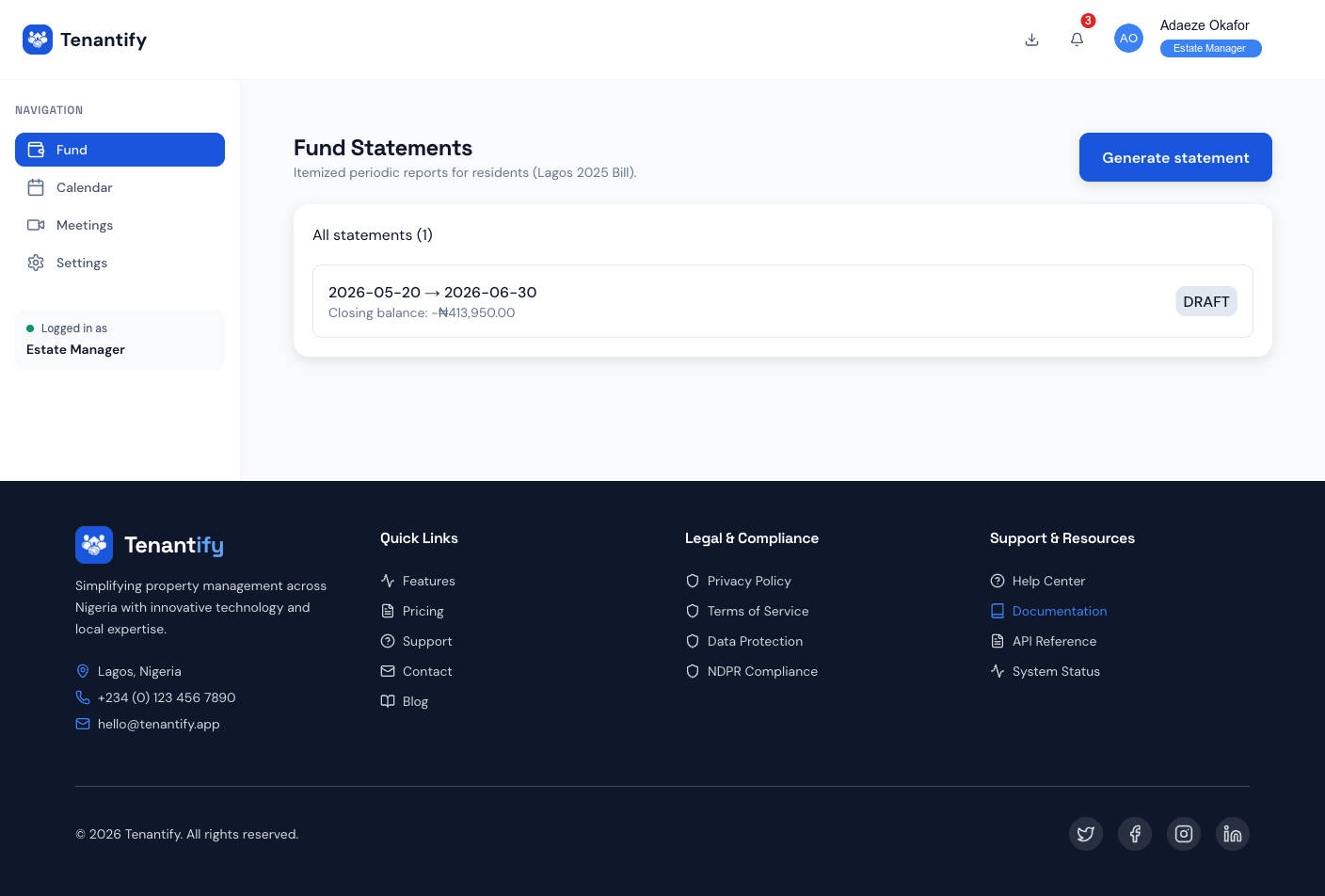
2. Click Generate statement
The form asks for:
- Period start and period end — the date range the statement covers. Pick the first and last day of the billing period (e.g. 1 June 2026 to 30 June 2026 for a monthly statement).
- Budget — the budget the period falls under.
- Recipients — all residents on the fund, or filter by unit if you publish per-unit statements.
Click Generate. Tenantify computes the period’s figures and creates the statement in DRAFT state.
3. Open the statement detail page
Click the new row to open /fund/statements/<id>. Four summary cards at the top:
- Opening balance — what was in the fund at the start of the period.
- Contributions — total resident contributions collected in the period.
- Expenses — total spend logged in the period.
- Closing balance — opening + contributions − expenses.
Below the cards, the Category breakdown table shows, per category:
| Category | Budgeted | Spent | Variance |
|---|---|---|---|
| Security | ₦200,000 | ₦185,000 | ₦15,000 |
| Utilities | ₦80,000 | ₦92,000 | (₦12,000) |
| Repairs | ₦60,000 | ₦35,000 | ₦25,000 |
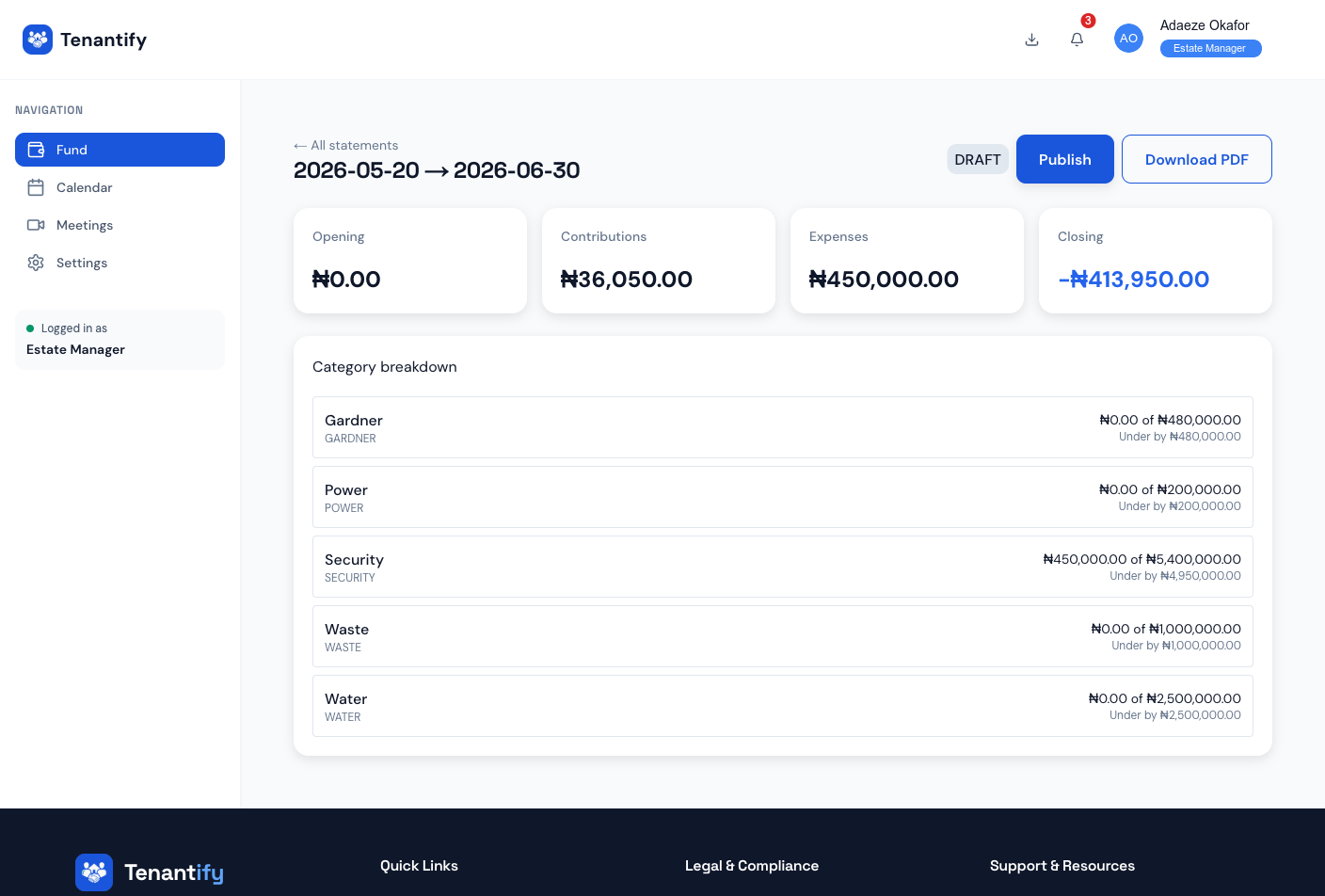
Variance in red means over-spend (Utilities above); positive variance in green means under-spend.
4. Review before publishing
Catch errors now, not after the statement leaves the building:
- Are all expected contributions in? Cross-check against your active resident list.
- Are all expenses logged? Compare with the expense receipts you have on hand.
- Do category totals match what you would tell a resident off the top of your head?
If anything is off, do not publish yet. Go back to /fund/expenses to fix the log, then regenerate the statement (the old one stays as a draft you can delete).
5. Publish
Click Publish statement. A confirmation dialog warns this action emails every recipient and cannot be silently undone. Confirm.
Tenantify sends the statement email to each resident with the PDF attached. A toast at the bottom of the screen confirms “X of Y emails sent”.
The status badge flips to PUBLISHED and the row locks against further category edits. A new statement for the same period requires a separate REVISED statement (contact support).
6. Download the PDF
Click Download PDF. The file naming convention is <estate>-statement-<period>-v<n>.pdf. Save it to your records and to the estate’s shared drive if you keep one.
If something goes wrong
“Budget not found” on generate. The period dates fall outside any of your budgets. Open /fund/budgets, extend or create a budget covering the period, then retry.
“Recipient count is 0”. No accepted residents have an email on file. Check /fund/residents for missing or invalid emails.
Emails partially sent. The toast names the failure count (e.g. “28 of 30 sent”). Check resident records for invalid addresses, fix, and use Resend on the statement row to retry only the failed recipients.
PDF download is blank. A network error during render. Re-click Download PDF. If still blank, contact support and include the statement ID.
Opening balance looks wrong. It is the closing balance of the previous statement. If the previous statement was off, fix that one first; this one cascades.
What’s next
Statements often surface residents who fell behind on contributions during the period. Read Handling Defaulters for the follow-up flow.