
Estate matters often need a conversation: a security review, a budget vote, an emergency about the generator. Tenantify’s Meetings page lets you schedule it, paste a Zoom or Google Meet link, and send every attendee a calendar invite that lands one click away from joining.
Who this is for
Estate managers (and other roles) who need to schedule recurring or one-off meetings with residents — annual general meetings, emergency security briefings, budget discussions.
What you’ll get done
A scheduled meeting on the Tenantify calendar, every attendee notified by email with the link, and a one-tap Join button that opens fifteen minutes before the meeting starts.
Before you start
- A meeting link from your video tool: Zoom, Google Meet, Microsoft Teams, Whereby — whatever the estate already uses. Tenantify does not host meetings; it organises them.
- A rough date and time, accounting for Lagos timezone.
- A list of attendees by email. If residents are on the fund, their emails are already on file.
Steps
1. Open Meetings
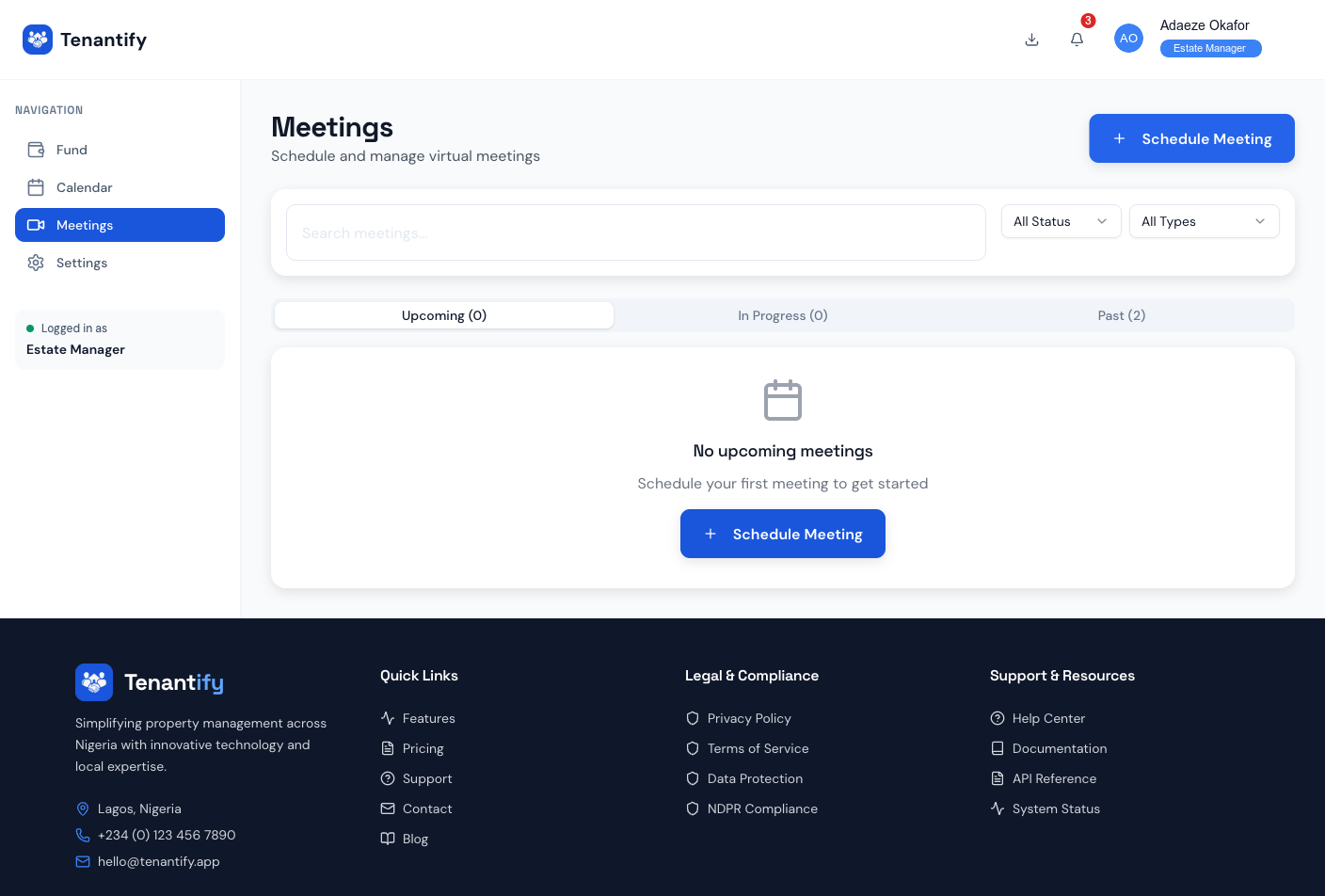
Open Meetings from the menu (URL: /meetings). The page has three tabs:
- Upcoming — scheduled meetings starting in the future.
- In progress — meetings that have started but not ended.
- Past — completed meetings.
2. Click Schedule Meeting
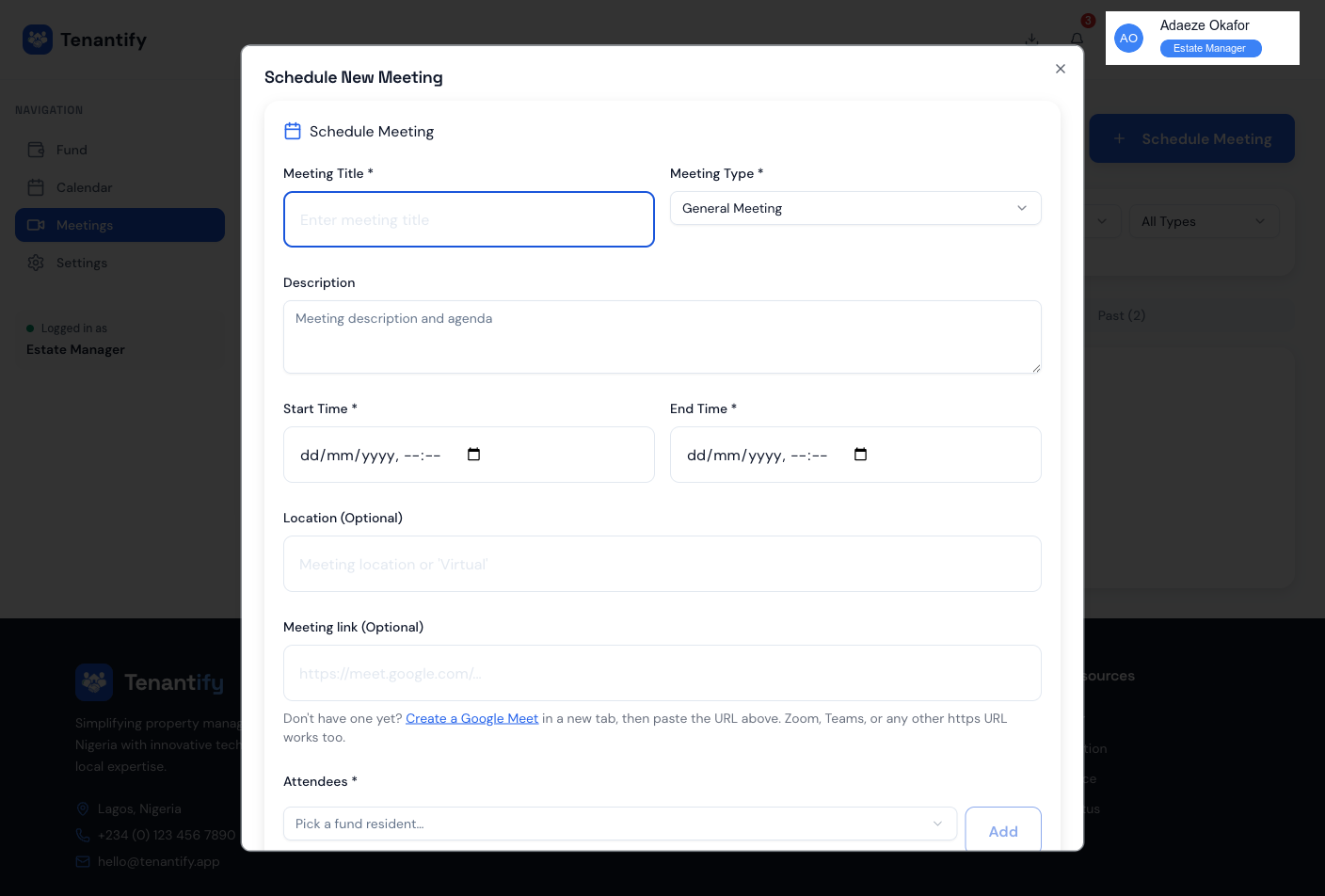
A dialog opens. Fill in:
- Title — short, recognisable (e.g. “August Security Review”).
- Meeting type — general, emergency, maintenance, or property viewing. The type affects the icon on attendee notifications.
- Start time and End time — in Lagos timezone.
- Location — “Online” for video calls; the estate clubhouse name for in-person.
- Meeting link — paste the Zoom, Meet, or Teams URL. Tenantify validates that it is a URL but does not check the link is live.
- Attendees — pick from the list of fund residents, or add an email if the attendee is not on the fund (e.g. a landlord, a contractor, a security consultant).
3. Save the meeting
Click Schedule. Every attendee receives an email with the title, date, time, and the meeting link. The meeting appears in the Upcoming tab on every attendee’s Meetings page.
4. The day of the meeting
Fifteen minutes before the start time, the meeting moves into the In progress tab and a green Join meeting button appears on each attendee’s card. The button opens the video link in a new tab.
If you are the organiser, click Start meeting at the scheduled start. This logs the actual start time and marks the meeting as live for everyone.
5. Close the meeting
When the discussion ends, click End meeting. The status flips to Completed and the meeting moves to the Past tab. The history stays available for a future audit (especially useful for AGMs and emergency briefings).
Copy a meeting link
If a resident missed the email, click the Copy link button on any upcoming meeting card. The clipboard now holds the link; paste it into WhatsApp, SMS, or another channel.
Updating a meeting
Open the meeting card and click the pencil icon. You can change the title, time, link, or attendee list. Every attendee receives an update email with the new details.
If you cancel, every attendee receives a cancellation email.
If something goes wrong
Attendees say they did not receive the email. Check /notifications for the meeting’s send log. The most common cause is a typo in the attendee email or an invalid address on a resident record.
The link in the email is wrong. You pasted the wrong URL. Edit the meeting; the update email goes out automatically.
“Join meeting” opens to a Zoom waiting room with nobody admitting attendees. The host has not started the Zoom meeting on Zoom’s side. Either the host needs to click Start meeting in Zoom, or you need to disable the waiting room in your Zoom meeting settings.
Calendar invite is missing the time zone. All meetings are stored in Lagos time. Attendees abroad need to convert manually.
Past tab does not include a meeting I attended. Only the organiser can mark a meeting Completed. If the organiser forgot, the meeting stays in In progress until they end it. Email the organiser.
What’s next
Most managers schedule a quarterly or annual general meeting once they publish their first statement, to discuss the figures with residents in real time. Re-read Generating and Publishing Statements if you have not done so already.