
The Residents page is the operational hub for who is on the fund. New move-ins, corrections, resends after a typo, and clean removals all live here. The page handles both single additions and bulk batches with the same form.
Who this is for
Estate managers who have completed the initial setup and need to add new residents, update existing ones, or remove residents who have moved out.
What you’ll get done
A current, accurate resident roster: every active resident invited, every pending invite either resent or expired, and any move-outs cleanly removed.
Before you start
- The fund must already be ACTIVE. If you have not finished setup, complete the Setting Up the Fund guide first.
- A list of the residents you want to add, with name, email, phone, and the unit each occupies.
Steps
1. Open Residents
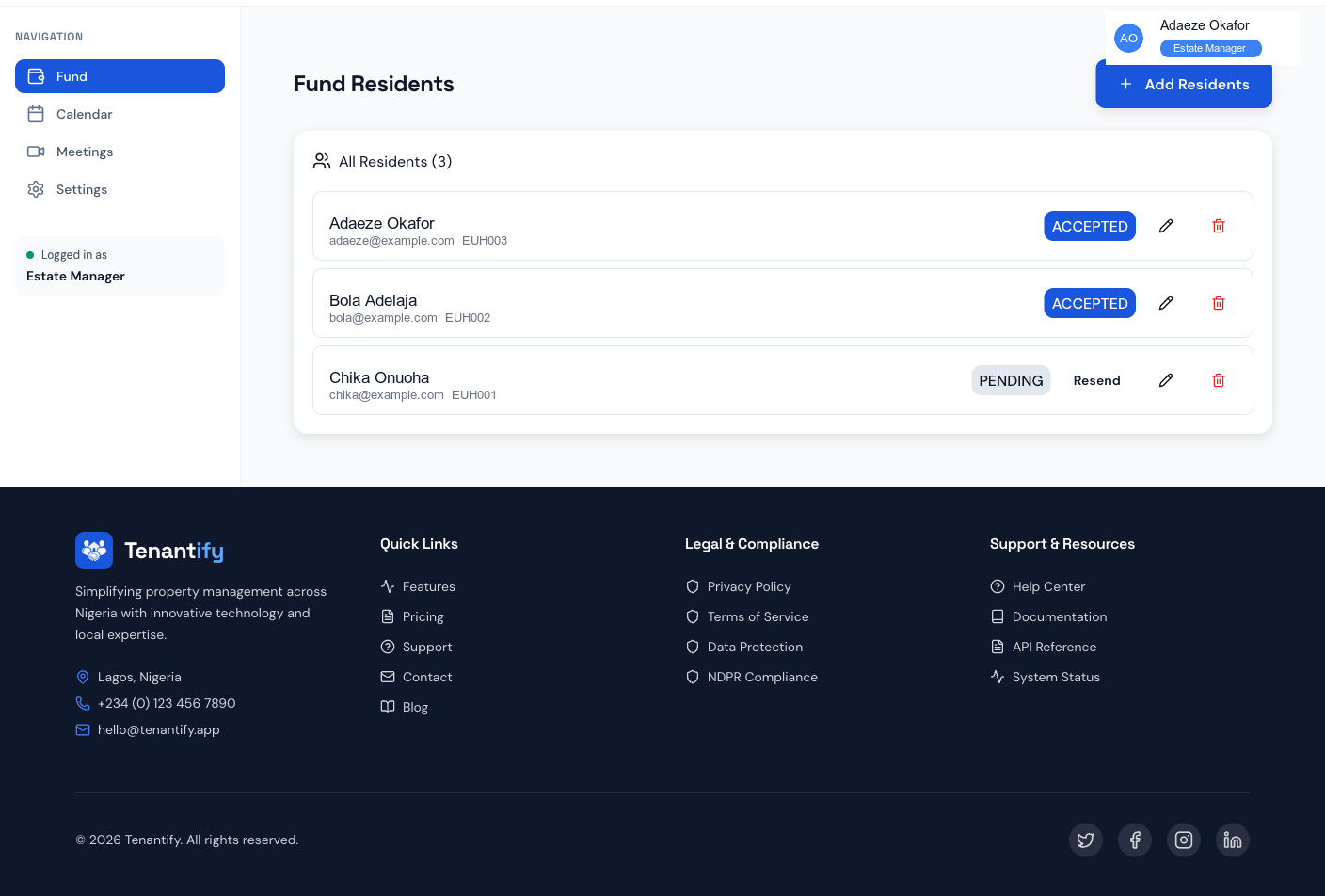
Open Residents from the menu (drawer on mobile, sidebar on desktop). The URL is /fund/residents. The page lists every invited resident with a status badge — PENDING (invited, not accepted), ACCEPTED (active), EXPIRED, or REMOVED.
2. Add residents (single or bulk)
Click Add residents. A form opens with a table you can extend row by row. Each row collects:
- Name
- Email — the address Tenantify sends the invite to.
- Phone — Nigerian format (+234, leading zero, or international).
- Unit — must match one of the units already on the estate.
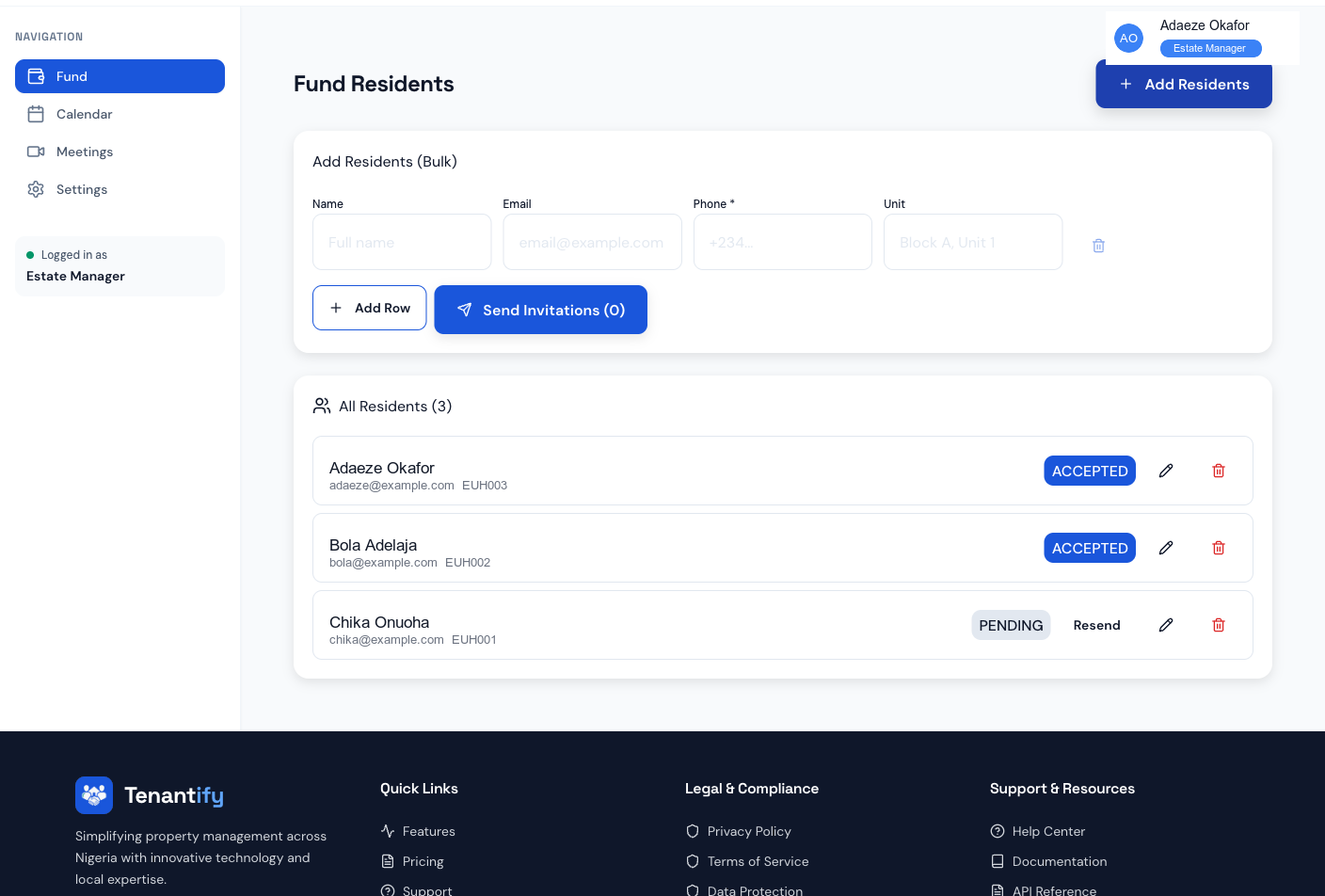
Click Add row for each resident. To add ten residents from a spreadsheet, paste each column into the corresponding form field one row at a time. Submit when the list is complete.
Each resident receives an invitation email immediately. They appear in the list with PENDING status until they accept.
3. Resend a missed invitation
When an invitation lands in spam or a resident has not opened it in two days, click the resident’s row and pick Resend invitation. Tenantify generates a fresh link with a new expiry window and re-sends the email.
A small resend counter is visible to remind you how many attempts have been made. If a resident has missed three resends, call them directly — the email address is probably wrong.
4. Edit a resident’s details
Typos happen. Click the pencil icon on any row to open the edit modal. You can change the name, email, phone, and unit. Changes save immediately and apply to future emails. The resident’s payment history and ID remain intact.
If you change the email of a PENDING resident, the prior invitation is invalidated and a new one is sent automatically.
5. Remove a resident
When a resident moves out, click the trash icon on their row and confirm. Tenantify takes the safer of two paths:
- Hard delete. If the resident has no payment history, they are removed entirely.
- Soft termination. If they have paid contributions, the historical record stays for transparency — they are marked REMOVED and excluded from new charges and defaulter lists.
Either way, future schedules stop, the invitation token (if any) is voided, and the resident loses access on next login.
If something goes wrong
“Unit not found”. The unit text you entered does not match an existing unit name on the estate. Open /dashboard/estates to check the exact spelling, then return to the residents form.
Resident accepted but does not appear in the list. Refresh the page. If still missing, log out and back in — your session may have stale data.
Bulk submit shows “some succeeded, some failed”. Tenantify processes the batch row by row. Failed rows usually have a duplicate email or an invalid unit. The error toast names which rows failed; fix and re-submit only those.
Removed resident’s name still shows on the statement. Statements are historical — they preserve the resident’s name at the time the contribution was paid. This is correct behaviour for audit purposes.
Resend button is missing. The resident has already accepted. The badge would say ACCEPTED, not PENDING. No resend needed.
What’s next
Most managers move on to Configuring Allocations to handle residents on special arrangements — a smaller flat paying a smaller share, a duplex on quarterly, a long-term resident on a frozen rate. Each becomes a per-resident allocation override.